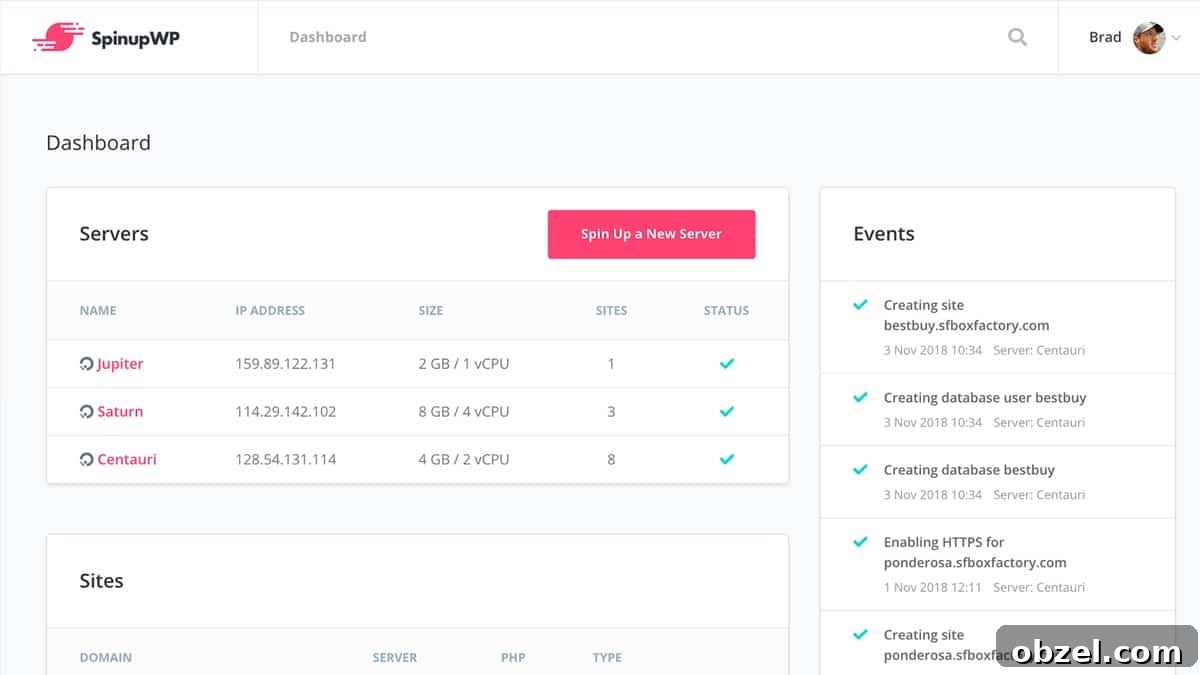
SpinupWP is a modern, cloud-based server control panel designed for WordPress hosting. It lets you run your own fast, scalable, and affordable DigitalOcean servers while still getting many of the conveniences you would expect from a managed WordPress hosting platform.
SpinupWP is a strong option for production WordPress websites, and I use it for many of my own personal projects. It is also an excellent choice for building a reliable WordPress development environment, especially if you want full control over your server without taking on unnecessary hosting costs.
My development server requirements are:
- Blazing fast. Many of my clients hire me to improve WordPress performance, so my development server needs to be optimized for speed from the start.
- Scalable. I need the flexibility to increase or decrease server resources depending on the size and demands of current projects.
- Reasonably priced. Keeping hosting expenses low is important, especially when the server is used for development and staging work.
I’m currently using a $15 per month droplet with 3GB of memory and 60GB of storage. After adding the $9 per month SpinupWP subscription, my total hosting cost is $24 per month. That is still less than many managed WordPress hosts charge for hosting a single website.
$50 credit for SpinupWP
If you sign up for SpinupWP using the link below, you’ll receive a $50 credit added to your account after 30 days.
Sign up now
My preferred development approach
I use git for version control on the custom WordPress themes I build. When I’m ready to deploy local changes to the development server, I run git push staging master. This keeps the workflow simple, predictable, and easy to repeat across projects.
I also use WP Migrate DB Pro to move the database between local, staging, and production environments. This makes it easy to pull down recent content from a live site or push updated development data to a staging environment when needed.
For clients hosted with WPEngine or BigScoots, I usually rely on their built-in staging environments and git-based deployment tools. For more details, see my articles on git for WPEngine and git for BigScoots.
When a client is hosted somewhere else, SpinupWP allows me to recreate that same efficient git push deployment workflow. It gives me a consistent WordPress development setup, regardless of where the production website is hosted.
Setting up a development environment
After you have completed your SpinupWP server setup, adding new WordPress sites is straightforward. I use a dedicated domain for development websites, and each project is set up as its own subdomain.
Log in to the SpinupWP dashboard and click the “New Site” button. From there, create a fresh WordPress installation. SpinupWP also provides a helpful guide for adding a new site.
Next, install WP Migrate DB Pro on both the production website and the new development site. I also recommend installing the Media and Theme & Plugin addons. With those tools in place, you can pull a copy of the database, media library, themes, and plugins to your development server. If you prefer, you can also copy the site files over via SSH.
Set up git on the server
- SSH into the server. You should already be in the site directory. Running
lsshould show/filesand/logs. - Create a bare git repository with
git init --bare project.git. - Create the post-receive hook with
touch project.git/hooks/post-receive. - Add execute permissions to the post-receive hook with
chmod +x project.git/hooks/post-receive. - Edit the post-receive hook using
vi project.git/hooks/post-receive, then add the script below. Be sure to update the two paths at the top so they match your server environment.
#!/bin/bash
TARGET="/sites/clientname.cultivatewp.com/files"
GIT_DIR="/sites/clientname.cultivatewp.com/project.git"
BRANCH="master"

while read oldrev newrev ref
do
        # only checking out the master (or whatever branch you would like to deploy)
        if [ "$ref" = "refs/heads/$BRANCH" ];
        then
                echo "Ref $ref received. Deploying ${BRANCH} branch to production..."
                git --work-tree=$TARGET --git-dir=$GIT_DIR checkout -f $BRANCH
        else
                echo "Ref $ref received. Doing nothing: only the ${BRANCH} branch may be deployed on this server."
        fi
done
In your local development environment, add the staging server as a git remote:
git remote add staging ssh://[email protected]/~/project.gitLocal environment, no media
Many WordPress sites I build have very large uploads directories. To save local hard drive space and make database syncing easier, I do not usually download the full media library to my local environment.
Instead, I use Migrate DB Pro to pull a local copy of the database, theme, and plugins. Then I install BE Media from Production and configure it to load media from the development server. You can install and configure the plugin with WP-CLI:
wp plugin install be-media-from-production --activate
wp config set BE_MEDIA_FROM_PRODUCTION_URL https://clientname.cultivatewp.com --type=constant
One of the first steps when building a new WordPress theme is identifying all required image sizes. After adding the necessary add_image_size() functions to the theme, I push the theme and database to staging and regenerate thumbnails there. Once that is complete, I pull a fresh copy of the database locally so the newly generated thumbnail references are available in my local environment.
The same process works when I need to upload new images. I push the database to staging, upload the images on the staging site, and then pull an updated copy of the database back to my local environment. This keeps the local setup lightweight while still allowing me to work with accurate content and media references.